Tutorial & Guide
Learn how to use our platform with these easy-to-follow guides
Install ModHeader on Your Browser
Step 1
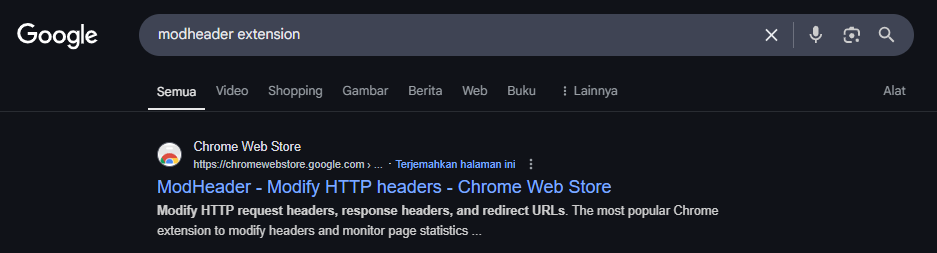
Open your browser and search for the ModHeader Extension.
Step 2
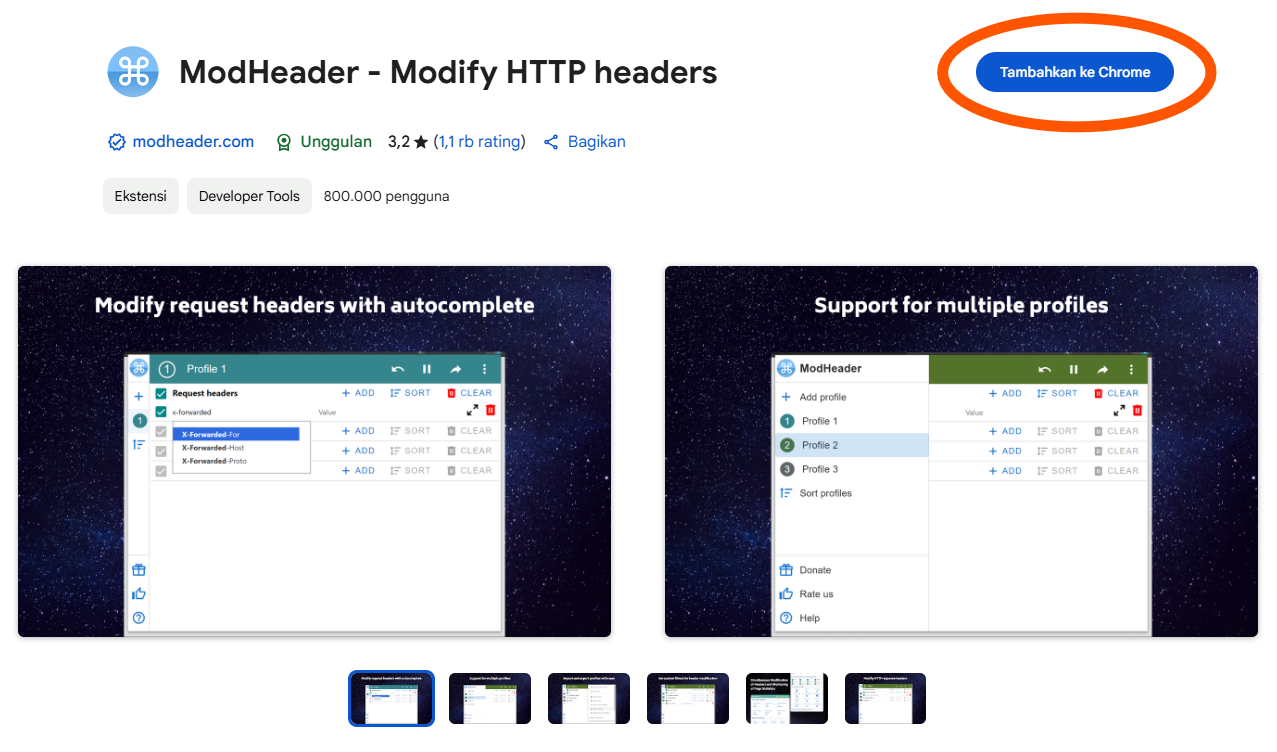
Install the ModHeader Extension.
Step 3
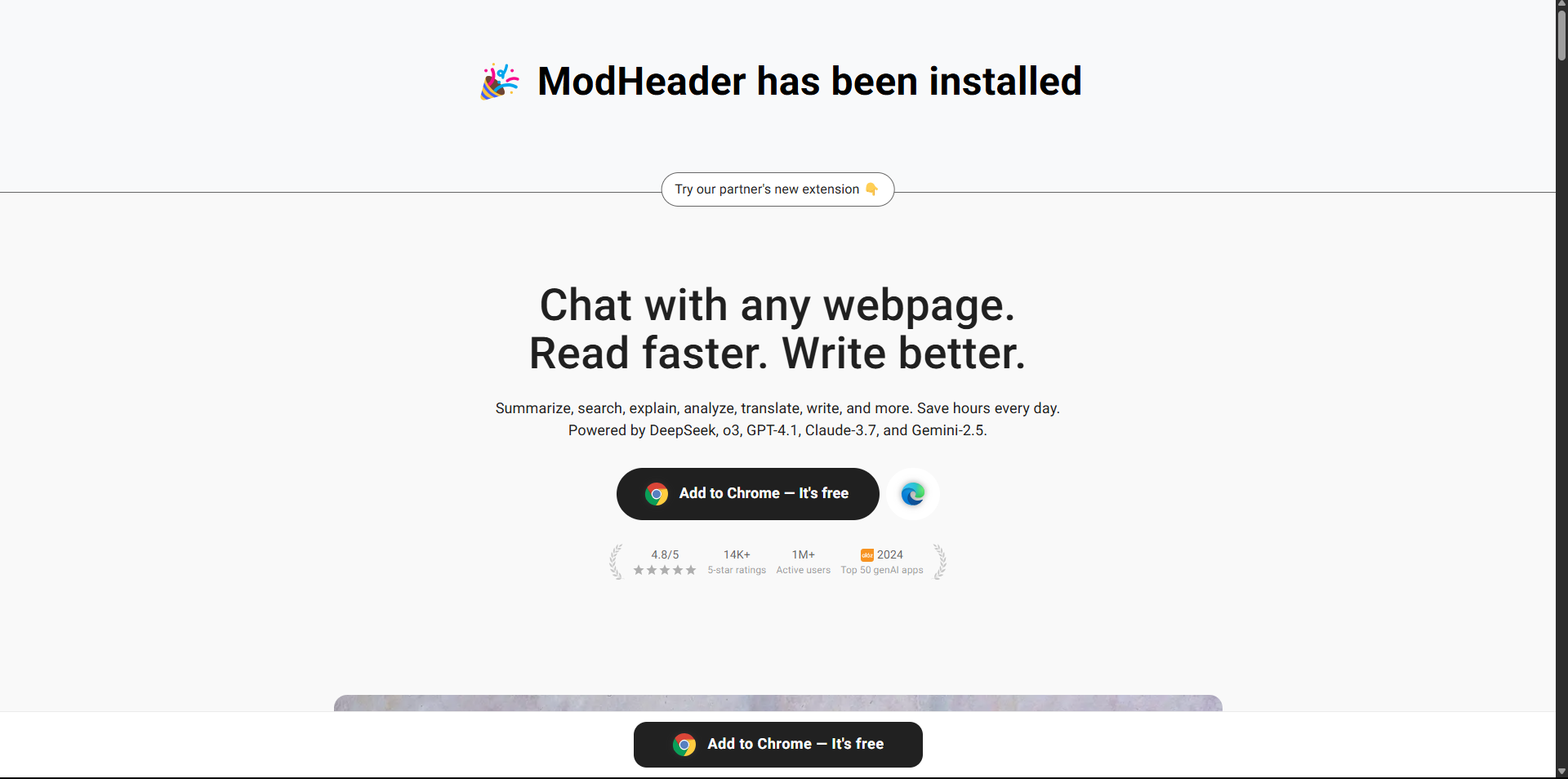
Once installed, you should see a screen like this, indicating the installation is complete.
Redeem Your Token to Get the Config
Ensure you have received a token from us.
Example Token:
2025-01-01-blueband-1234-01
Step 1
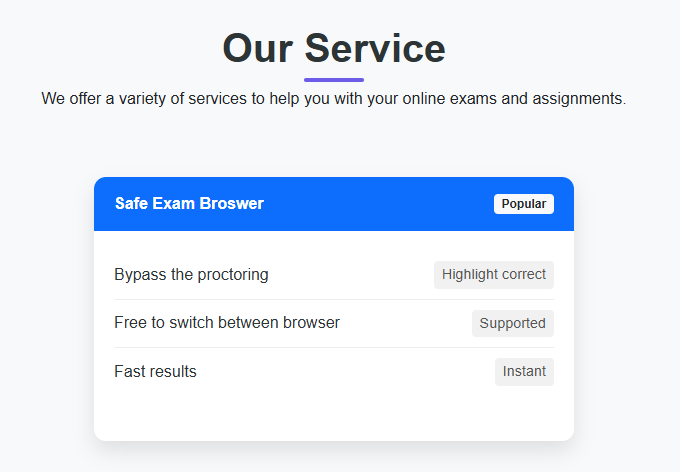
Go to the service page and select Safe Exam Browser.
Step 2
Fill out the form with your token, config name, and upload the config.seb file.
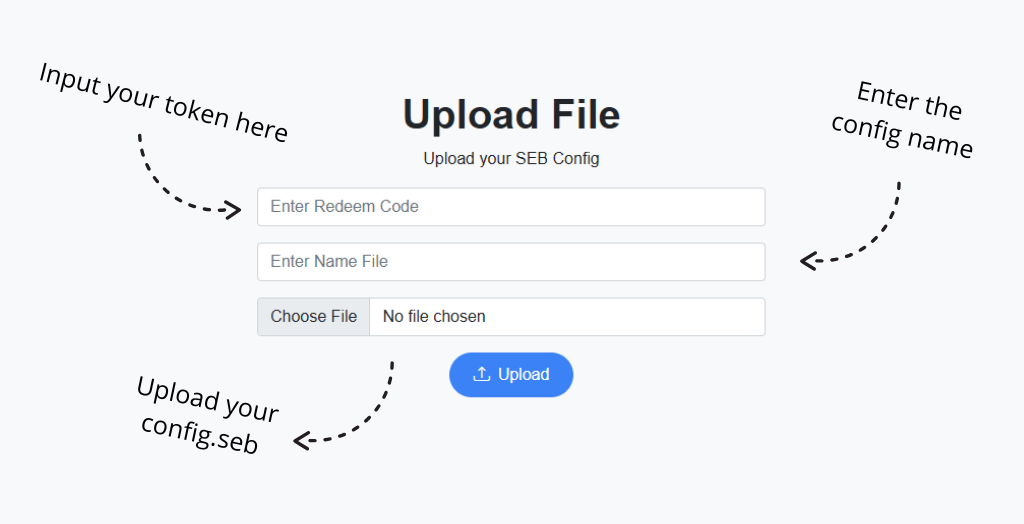
Step 3
Click the Upload button and wait for a notification confirming the config creation.
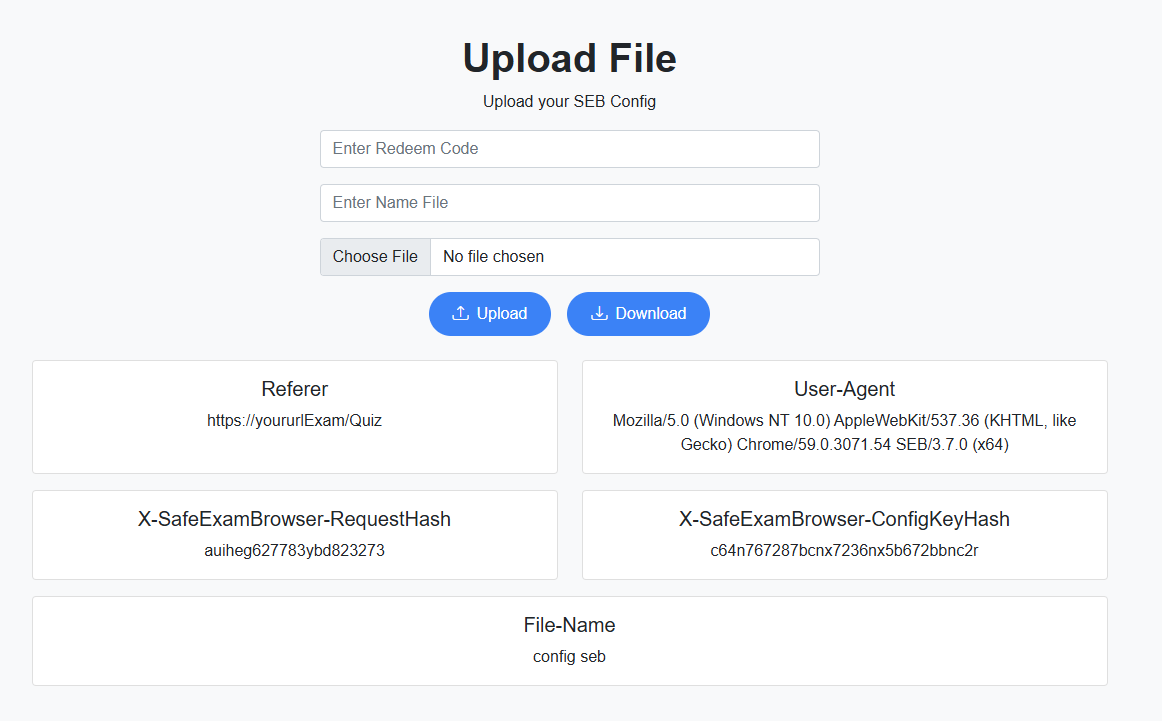
Step 4
Download the generated config.seb file.
How to Use the Config
Make sure you have downloaded the JSON file after redeeming your token.
Step 1
Open the ModHeader extension in your browser.
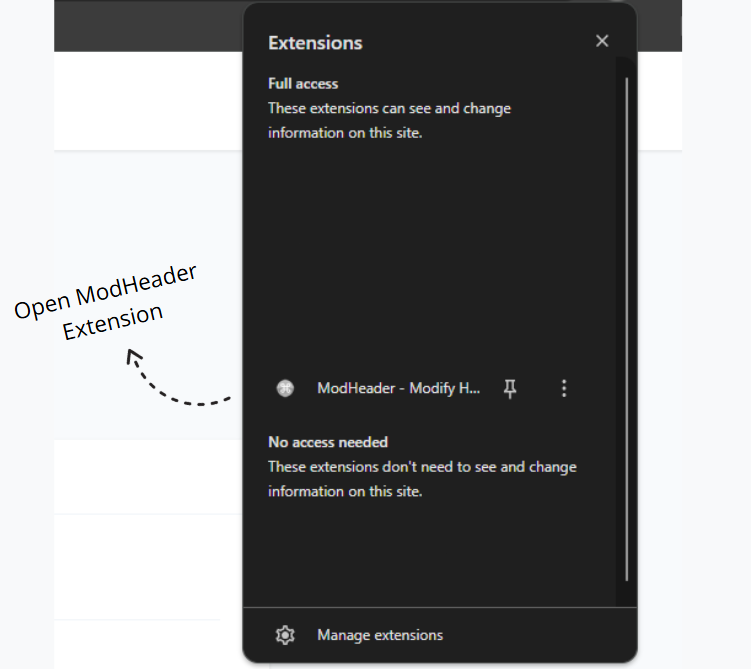
Step 2
Follow the steps shown below.
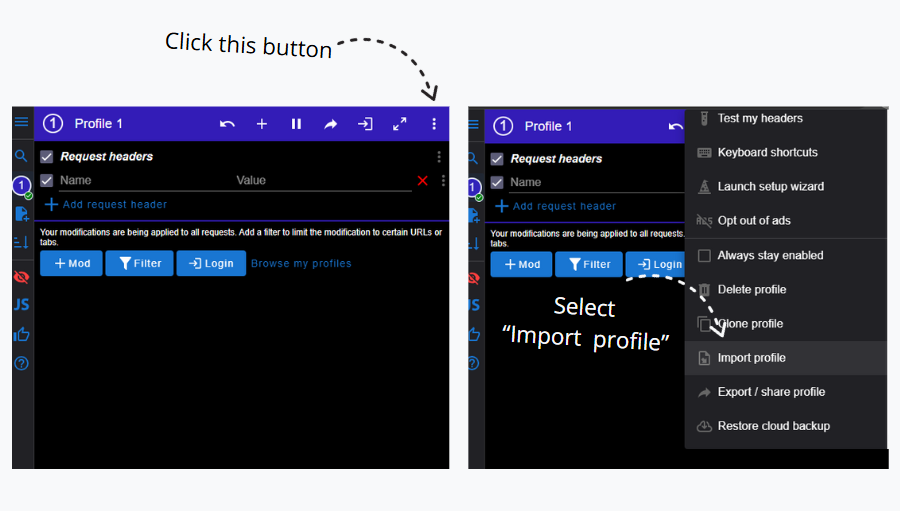
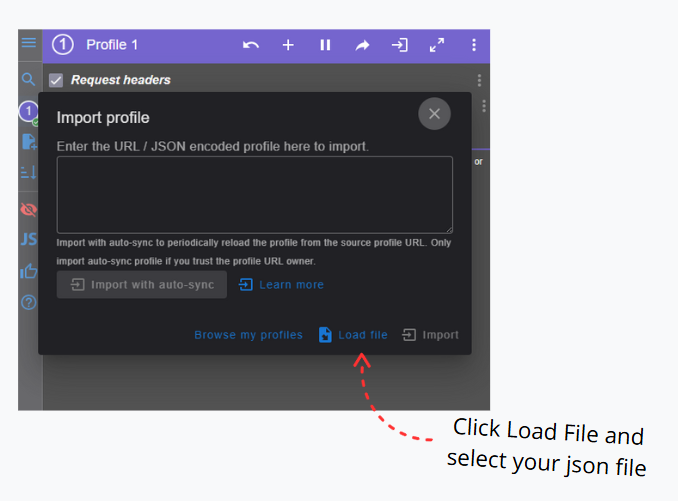
Step 3
After loading the JSON file, your ModHeader should look like this. Check all the boxes.
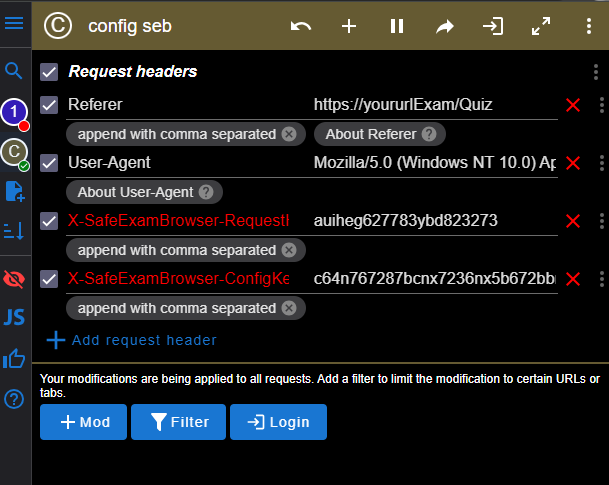
Now, open your Quiz/Exam page and refresh it.
Congratulations! You can now take the quiz without using Safe Exam Browser.